
How to Have Better Conversations with Microsoft Copilot: A Complete Guide
If you’re using Microsoft Copilot to work smarter, faster, and more creatively, learning how to manage your conversations can make a huge difference. Copilot not only responds to your prompts in real time—it also remembers past conversations, helps you pick up where you left off, and lets you organize or share your chats effortlessly. In this guide, we’ll walk you through how to interact effectively with Copilot and make the most of its conversation history features.
What Is Conversation History in Copilot?
When you’re signed in, Copilot automatically saves your interactions for up to 18 months, allowing you to revisit ideas, continue projects, or review past information at any time.
This means you don’t have to start from scratch every time—you can build on previous chats just like you would with a real assistant.
Where to Find Your Copilot Conversation History
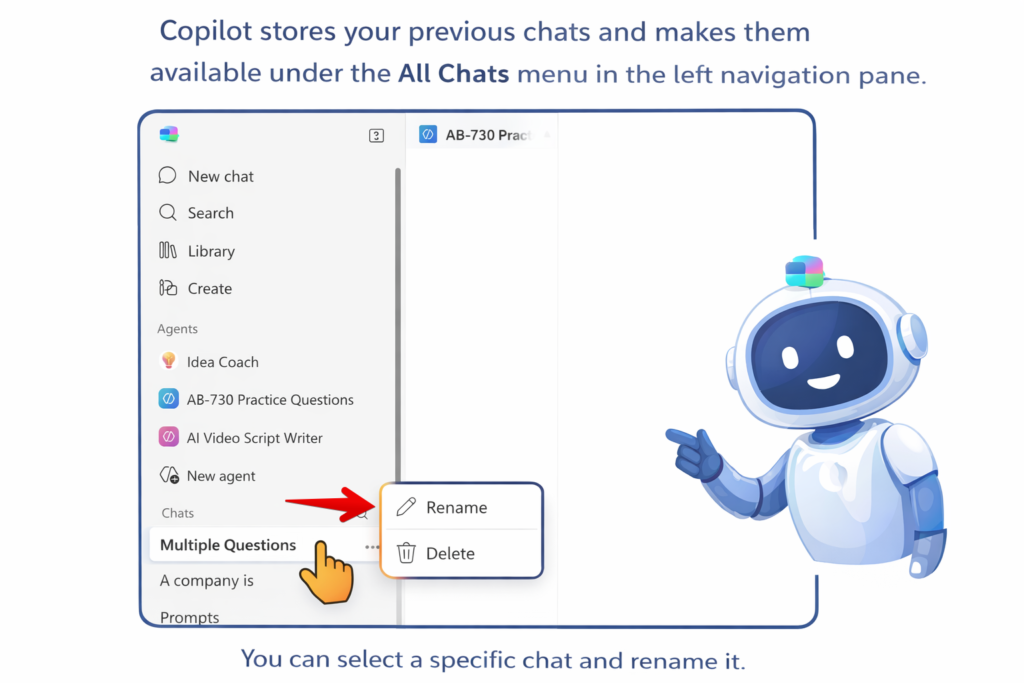
Copilot stores your history across various platforms where you’re signed in with your Microsoft account. Here’s where to find it:
1. On copilot.com
- Your conversation history appears on the left sidebar.
- If the sidebar is hidden, click the sidebar icon (upper left) to reveal it.
2. In the Copilot Desktop App (Windows or macOS)
- The conversation list also appears on the left side.
- If not visible, click the sidebar icon to open it.
3. In the Copilot Mobile App
- Open the app menu to view your full conversation history.
This cross-device sync ensures you’re always able to continue your work—no matter where you started it.
How to Manage Your Copilot Conversations
Delete Individual Conversations
You can delete specific chats from your history if you don’t want them stored:
- copilot.com: Select the three dots next to a conversation → Delete.
- Windows/macOS: Right‑click the conversation → Delete.
- Mobile app: Tap three dots → Delete.
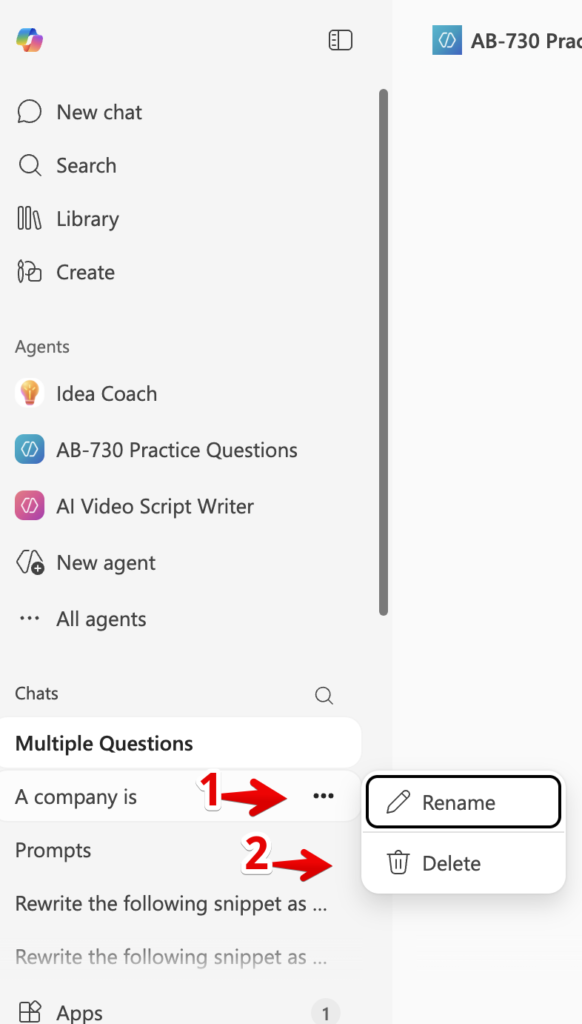
How to Rename an Individual Copilot Chat
Renaming conversations helps you stay organized, especially when you’re working across multiple projects or using Copilot for different tasks. Microsoft provides a simple way to rename chats through the Copilot interface.
Steps to Rename a Conversation
To rename a chat in Microsoft 365 Copilot Chat, follow these steps:
- Open Copilot Chat and sign in with your Microsoft 365 work or school account.
- In the Conversations list, locate the chat you want to rename.
- Select the … menu next to the conversation’s title.
- Choose Rename, then type the new conversation name
How to Share a Conversation with Others
Copilot allows you to share your conversation as a link—perfect for collaborating, sharing research, or handing off tasks.
Sharing Options
- Share full conversation:
Click the share icon on the top‑right of the chat page. - Share a single response:
Click the share icon under the individual message.
You’ll see a preview of what you’re sharing before generating the link. Remember: anyone with the link can view it, so avoid sharing confidential or sensitive data.
Tips for Having Effective Conversations with Copilot
✔ Be specific with your prompts
The more detail you give, the better Copilot can help. For example, instead of saying “Write a report,” try “Create a one‑page financial summary for Q4 performance with bullet points.”
✔ Use follow‑up questions
Your conversation history lets you build on previous prompts seamlessly—treat it like an ongoing discussion.
✔ Revisit old chats for efficiency
Need that analysis you asked for last week? Just click the conversation title in your history and pick up where you left off.
✔ Clean up history when needed
Removing outdated or irrelevant conversations keeps your workspace organized and ensures Copilot takes the right context from your past chats.
Why Conversation History Matters
Conversation history makes Copilot feel like a continuous, intelligent assistant. You can:
- Resume tasks instantly
- Keep track of long‑term projects
- Collaborate by sharing conversations
- Have personalized responses based on previous interactions
Microsoft emphasizes that conversation history helps users stay productive while maintaining privacy control through deletion or management tools.
Final Thoughts
Mastering how to interact with Copilot—and using its conversation history effectively—can transform the way you work. Whether you’re drafting content, analyzing data, brainstorming, or automating tasks, your past interactions are there to enhance your future results.
If you want your website readers to feel confident and empowered when using Copilot, this guide gives them the perfect starting point.