
Using Copilot Pages with Microsoft Copilot: A Complete Guide
Microsoft’s Copilot ecosystem continues to evolve rapidly, introducing tools that reshape how we plan, write, organize, and collaborate. One of the most powerful and underrated features is Copilot Pages—a dynamic workspace where AI‑generated ideas transform into editable, persistent content you can refine and build upon.
In this comprehensive guide, we bring together insights from Microsoft Support, Storyals, DandelionAI, and expert demos to help you understand what Copilot Pages are, why they matter, and how to use them effectively.
What Are Copilot Pages?
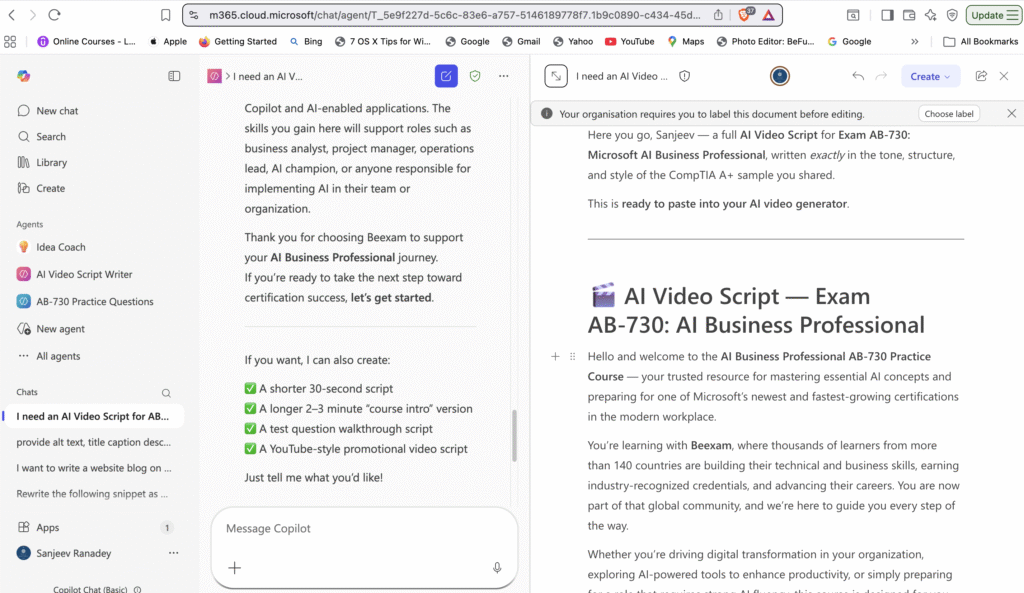
Copilot Pages are web-based, Loop‑powered canvases tightly integrated with Microsoft Copilot Chat, enabling users to save, edit, refine, and collaborate on AI‑generated content.
Unlike standard Copilot chat responses that remain ephemeral, Copilot Pages turn those outputs into editable, persistent documents—similar to combining ChatGPT’s free‑flowing creativity with OneNote or Loop’s structured editing.
These pages allow you to:
- Edit text in real time
- Use formatting tools (headings, lists, tables, callouts, etc.)
- Co‑create with colleagues
- Continue prompting Copilot to expand or refine content
Why You Should Use Copilot Pages
1. Persistent & Reusable Content
Copilot Pages preserve your AI‑generated outputs, turning them into long-lasting working documents instead of temporary chat history.
2. Real‑Time Collaboration
Teams can edit simultaneously, making Pages ideal for projects, research, planning, or shared documentation.
3. Deep Microsoft 365 Integration
Pages integrate with SharePoint, OneDrive, Teams, Outlook, and Loop—automatically saving content in secure storage while supporting enterprise governance.
4. AI‑Assisted Editing
Highlight any text and use Copilot to rewrite, refine tone, simplify, or expand content.
5. A Powerful “Canvas Meets Notebook” Experience
DandelionAI describes Copilot Pages as a blend of ChatGPT’s creative canvas with OneNote’s structure, making them flexible for research, planning, or content creation.
How to Create a Copilot Page
Via Copilot Chat (Most Common)
- Start a conversation in Microsoft Copilot Chat.
- When you receive a useful response, click “Edit in Pages” (or “Edit this response”).
- Storyals highlights this as the easiest starting point—no more copy‑paste.
- Storyals highlights this as the easiest starting point—no more copy‑paste.
- Copilot will automatically create a new Page or let you choose an existing one.
- Begin editing immediately—Pages save automatically.
Automatic Creation
If you prompt Copilot with tasks that imply long‑form work (e.g., “Create a project brief…”), Copilot may automatically generate a Page.
Refining and Editing a Page
Once in a Page, you can:
Rename & Organize
Pages are initially titled with your first prompt—but can be renamed instantly.
Use Rich Formatting
DandelionAI outlines available formatting tools, including:
- Headings (H1–H3)
- Bold/italics/underline
- Strikethrough
- Comments
- Lists (bullets, numbered, checklists)
- Tables
- Callouts
- Quotes
- Dividers
- Hyperlinks
Add Content Blocks
Typing “/” opens the full insert menu, allowing you to embed:
- Tables
- Media & images
- Date blocks
- Summaries
- Code blocks
- Mermaid diagrams
- LaTeX math
AI-Driven Enhancements
Click the Copilot icon on the right side of a selected section to rewrite, expand, simplify, or improve that section.
Working Side‑by‑Side with Copilot Chat
You can open Copilot Chat next to your Page to:
- Ask Copilot to expand existing content
- Add new sections
- Generate summaries
- Ask questions about the page’s content (a recently introduced feature)
This turns Pages into a live, interactive writing environment backed by AI.
Examples of What You Can Do with Copilot Pages
1. Research & Knowledge Gathering
DandelionAI emphasizes using Pages to pull together research or build client profiles.
2. Document or Report Writing
Write and refine reports using smart suggestions, tone adjustments, and grammar improvements.
3. Planning & Events
Copilot Pages are great for event planning—like building multi‑day itineraries with hotels, food budgets, and activity recommendations.
4. Brainstorming & Idea Refinement
Pages help you organize scattered ideas into structured outlines.
5. Blogging & Content Creation
Use Pages to draft articles paragraph‑by‑paragraph, refine them, and integrate images generated via Copilot.
Storyals: Practical Tips for Getting Started
Storyals emphasizes:
- Use Pages to turn scattered research (like comparing headsets) into structured content.
- Add tables using Add to Page for editable, flexible formatting.
- Use headings and the “/” menu to reorganize content intuitively.
DandelionAI: Hidden Features & Power Tips
DandelionAI highlights lesser‑known capabilities:
- Basic formatting + extended menu options via “…”
- Block‑based editing (move sections up/down for structure)
- Summaries, callouts, tables of contents
- Mermaid diagrams & LaTeX support
Who Can Use Copilot Pages?
- Work or school accounts (Entra ID): Available to users with SharePoint or OneDrive storage—even without a full Copilot license.
- Personal Microsoft accounts: Available to Microsoft 365 Personal, Family, or Premium subscribers.
Final Thoughts
Copilot Pages represent a shift from AI chat as a one‑off tool to AI as a collaborative workspace.
They act as:
- A planning board
- A research notebook
- A writing assistant
- A project hub
- A knowledge repository
Whether you’re a small business (as highlighted by DandelionAI), a knowledge worker, a student, or an enterprise team, Pages help move your ideas from “generated” to “polished and actionable.”